
What does the Plan tab show?
Broken down by location are all the tasks which are currently in tolerance. To ensure this is up to date, regular sync patterns are recommended; at the very least syncing both before and after work.
In tolerance tasks are broken down further using grey and amber colours [Fig 1]
- Amber, some or all tasks in a location are on, or have passed, their due date
- Grey all tasks in this location are approaching their due date
Completing either type of task (grey/amber) will ensure that the schedule is signed off once the data is sync'd to ZetaSafe.
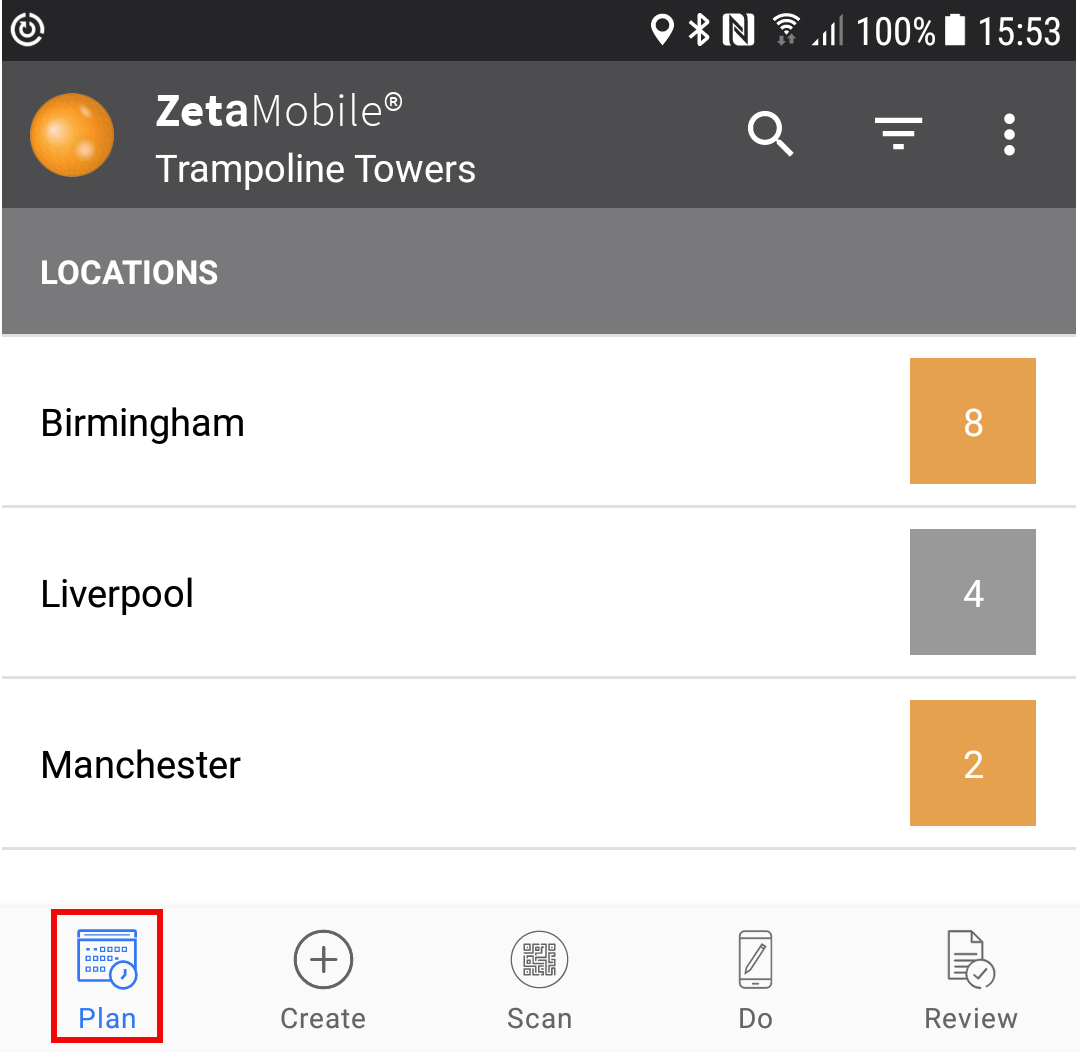
Fig 1
Plan tab menu icons
 Fig 2
Fig 2
Clicking the ellipses icon will open up a menu, the contents of the menu are dependent on the logged in user role. In the special case where a user is 'rescuing' data for another user, this will also produce a restricted menu in this area.
- Logout - all roles & rescue user
- Change Role - multiple role users (not shown if logging in as rescue user)
- Change Client - channel type roles (not shown if logging in as rescue user)
- Cancel (returns to plan tab) - all roles & rescue user
 Fig 3
Fig 3
The calendar icon allows you to show/hide whether the plan tab contains all tasks in tolerance on the current day or only tasks which have a due date = current day. When the filter is grey [Fig 3] it is showing all tasks which are in tolerance on the current day (invariably this filter option will show more tasks available to complete). This filter is accessed from within the main filter [Fig 4] and can be seen in Fig 6&7, when active the filter is amber (as with ios app)
 Fig 4
Fig 4
The filter icon [Fig 4] opens up a new screen which allows the plan tab to be filtered by MCS [Fig 7] and/or asset type(s) [Fig 6]. To remove filters, click the dustbin icon and click done - the plan view will refresh.
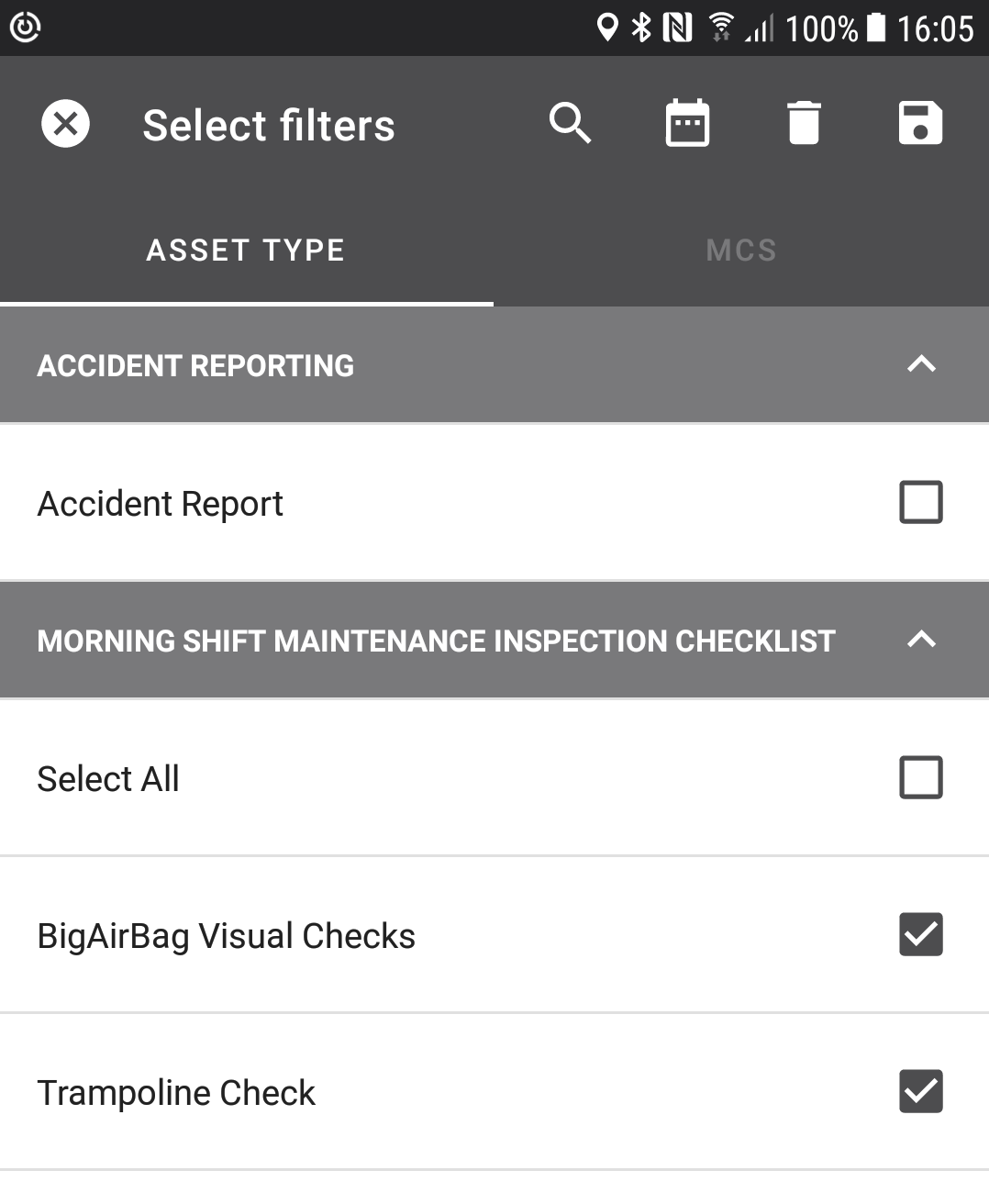
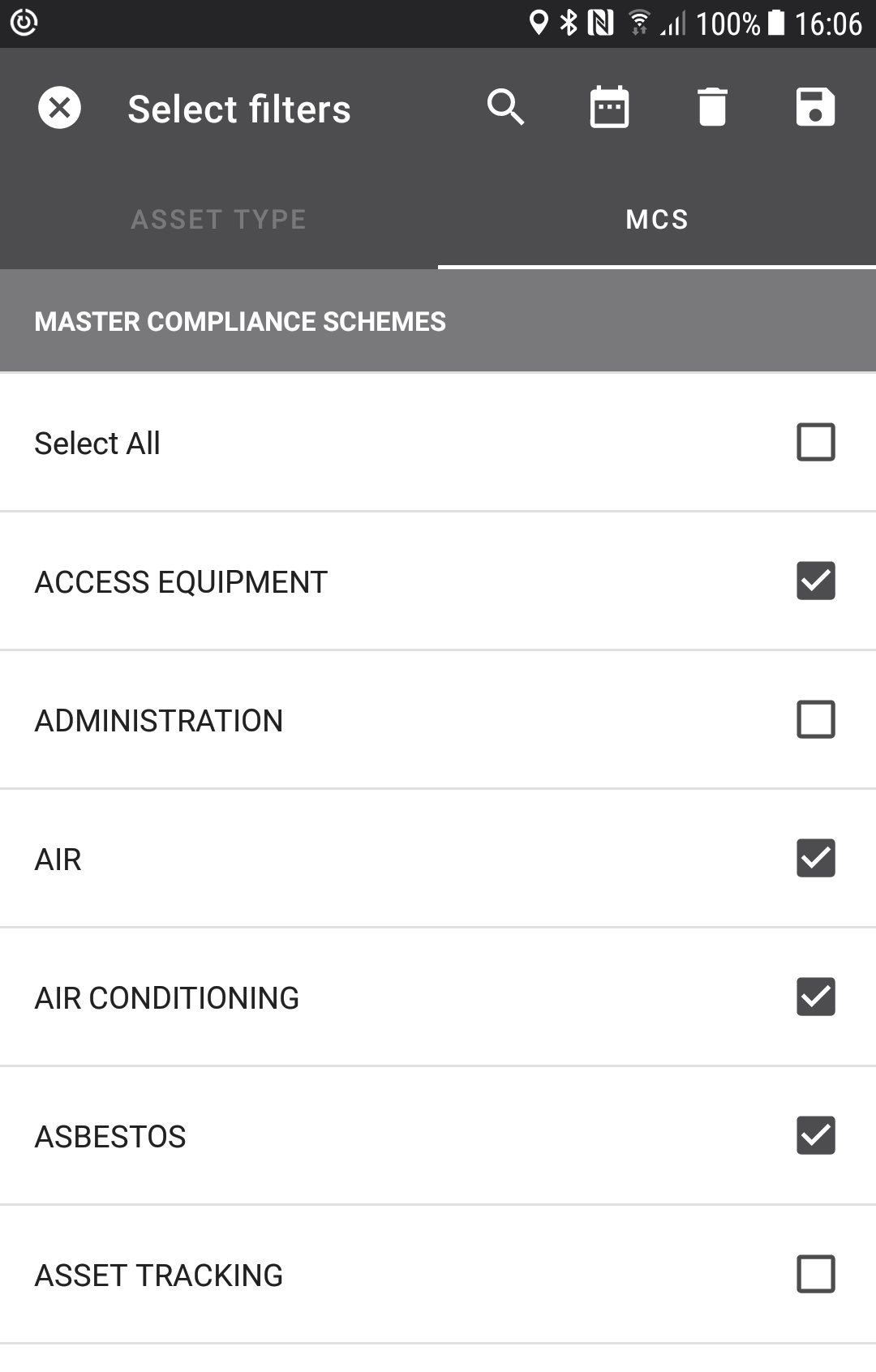
Fig 6 Fig 7
Comments
0 comments
Article is closed for comments.