
There are two ways to add new location in the ZetaMobile Android app:
- It can be created ahead of adding any assets and will be available for selection when adding assets and also for the purposes of adding location notes. [Fig 1 & 2]
- It can be created within the process of adding an asset, in order to save that asset in the new location as a single workflow. [Fig 3 & 1]
For both workflows you will need to start from the Create Tab (Fig 1)
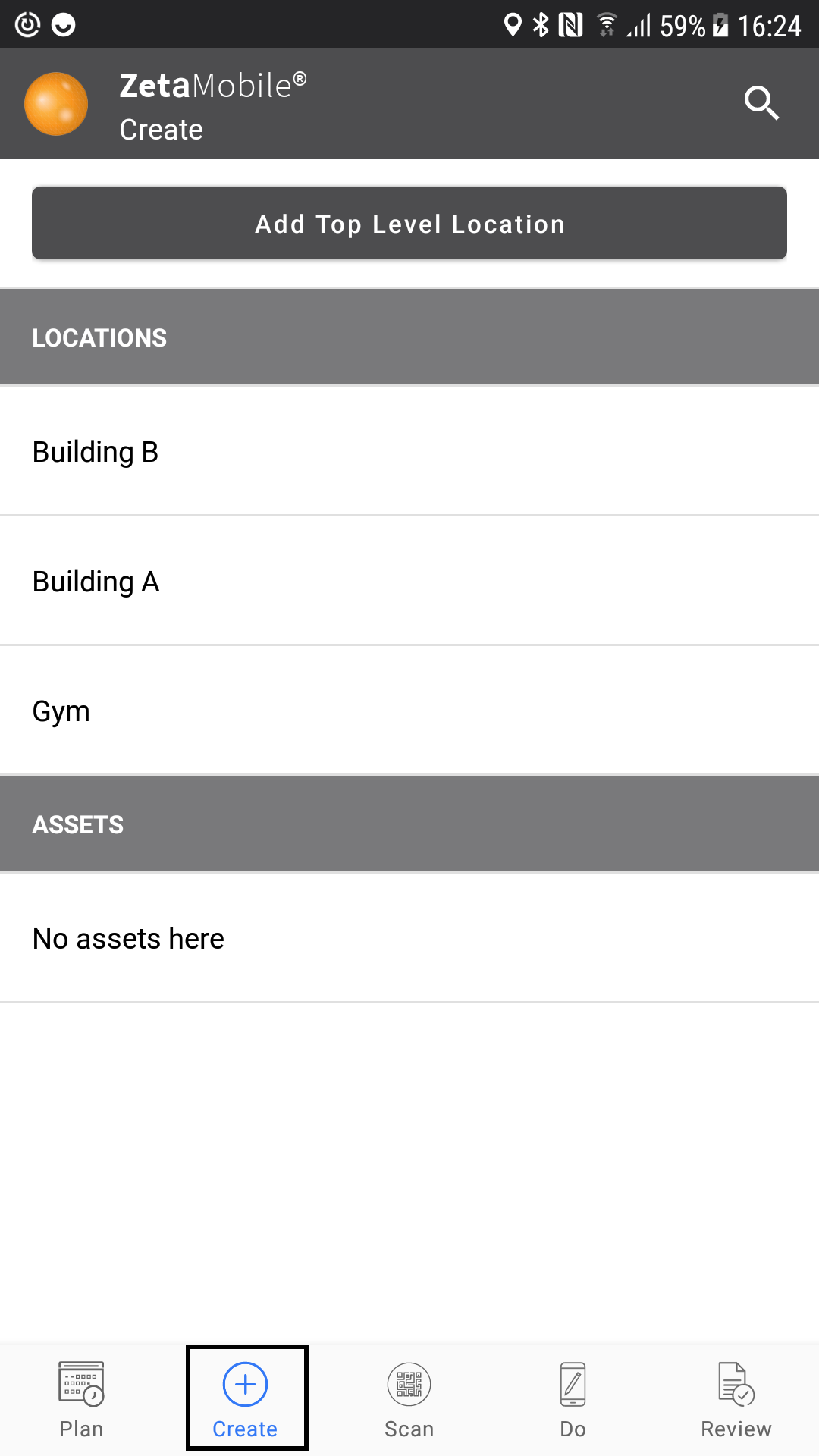
Fig 1
- Location type user roles can only add sub-locations to areas where they already have access and so will need to select a parent location before they are able to add new places.
- Basic users cannot add new locations (or new assets) but they can add Location notes
- All other user roles can add both top level, and sub, locations.
Add a top level (or root) location
To add a top level location, do not select anything, just click 'Add Top Level Location' and go ahead and enter your location information
Add a sub location
Once a location has been selected the options are expanded [Fig 2] but the procedure is the same as above - click 'Add Sublocation' and enter the location details.
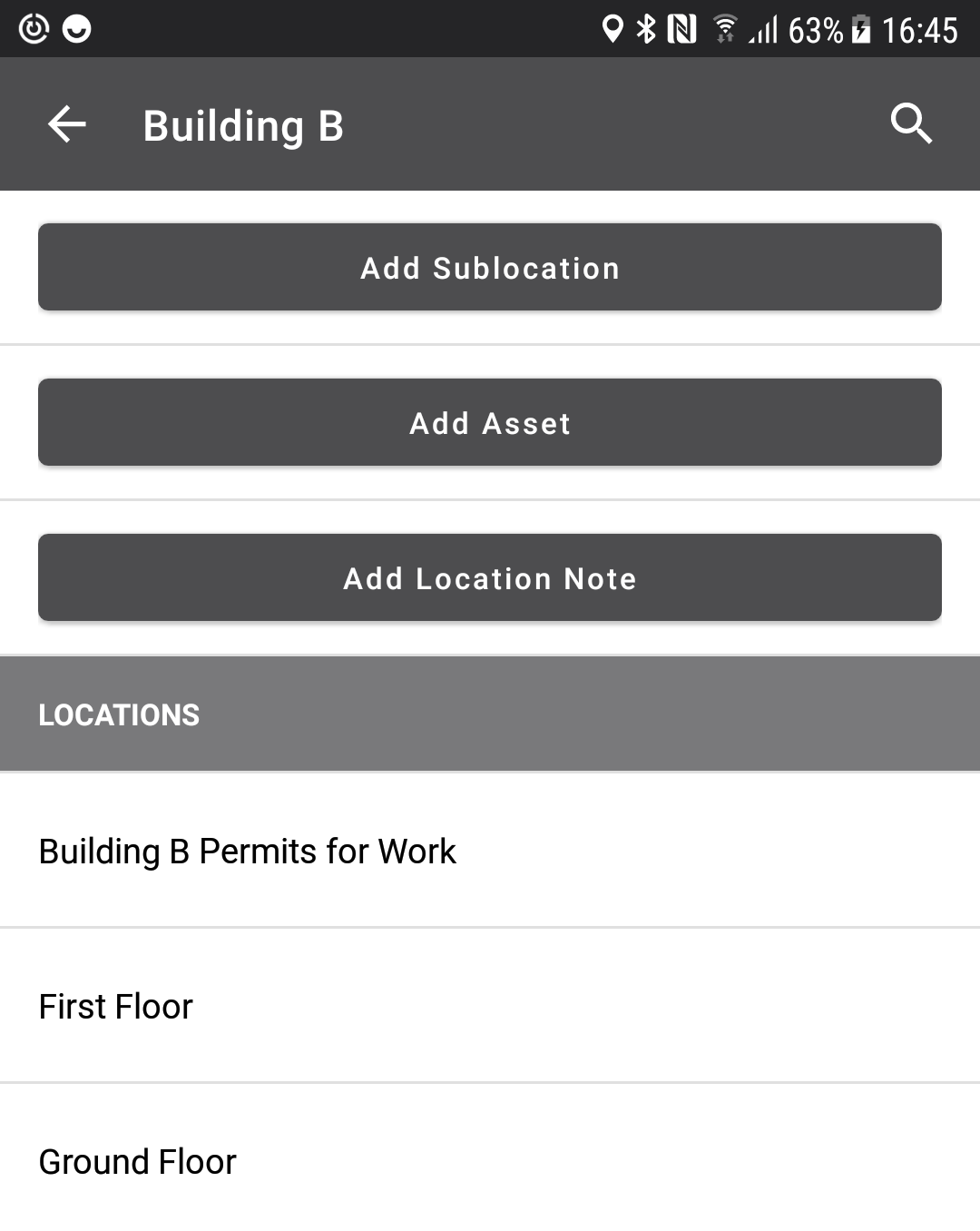
Fig 2
Add a location whilst adding new asset
In the 'Add Asset' screen you will see the location section - it may or may not have a location pre-selected (this depends on how you are adding your asset), click the section and Fig 1 will be shown, allowing the location to be changed to an existing location or the addition (and selection) of a new location.
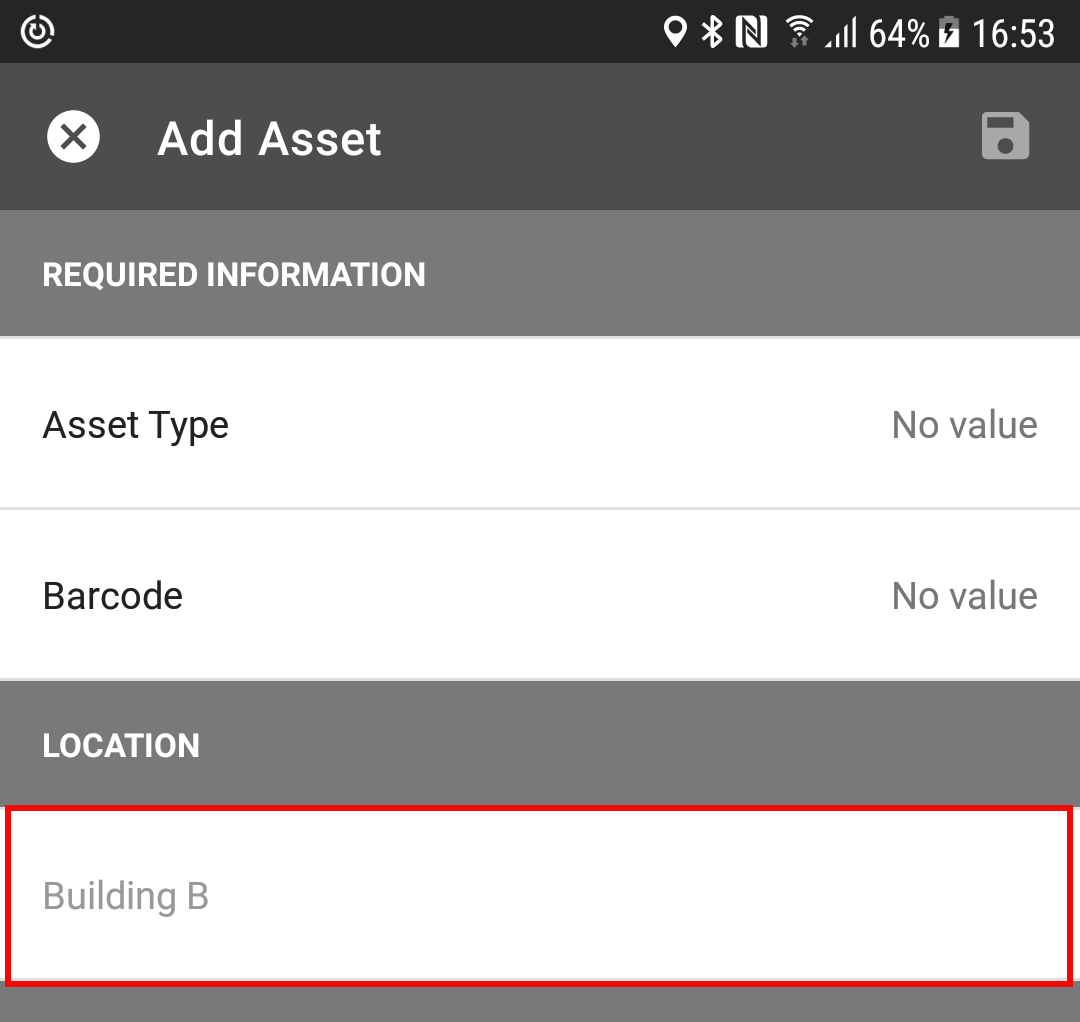
Fig 3
What information can be saved for a location
Locations have some 'standard' attributes, such as:
- Barcode
- Location (required)
- Asset type (required)
- Risk rating (required - defaults to 1: Low Risk)
- Health & safety issues (will turn the location red in any list so it is easily identifiable something hazardous eg. Asbestos. might require further permits or protective clothing etc.
- Location type - a tag which can be used to filter widgets and lists on the main website at a later date.
- Address fields
In addition to this users can configure bespoke attributes for locations on the main website and these will also be displayed when adding a new location in the app. An example of some user defined attributes are shown in Fig 4
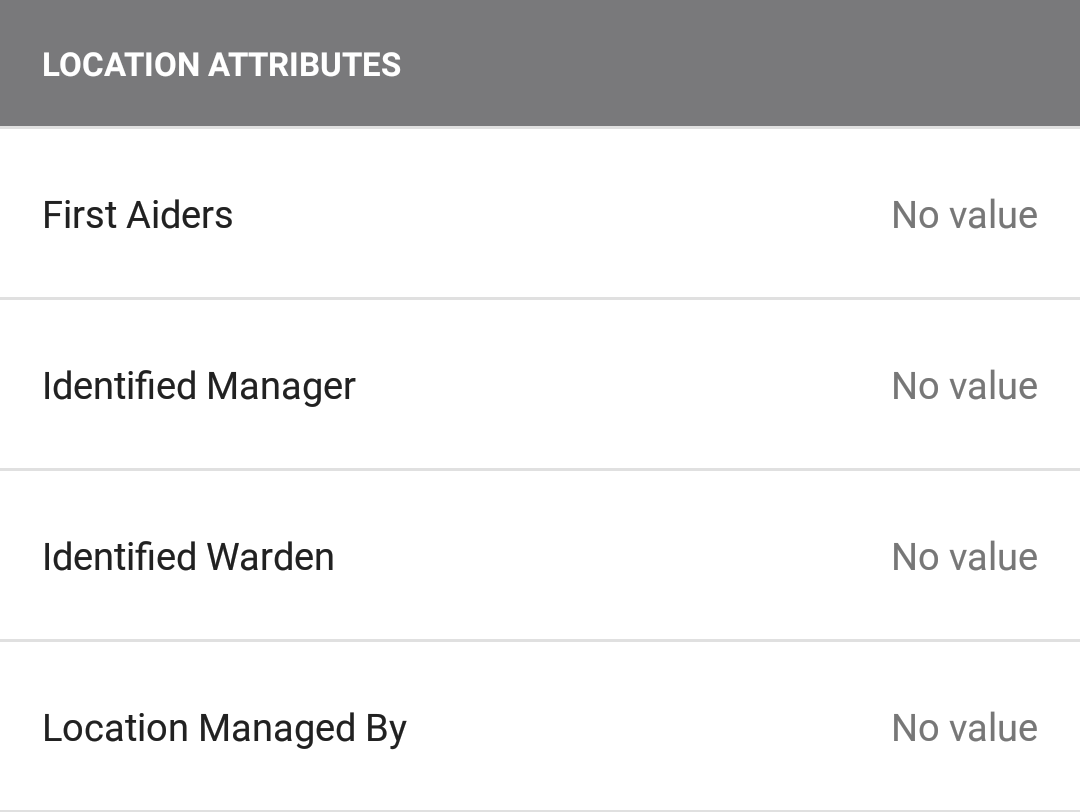
Fig 4
Comments
0 comments
Article is closed for comments.