
Adding New Tabs
It is possible to have multiple dashboard tabs, each configured however the user desires. A default dashboard can be defined and this will be displayed on each login and visit to the dashboard from within the system.
Any number of tabs can be added, the maximum which can be displayed on screen is 10, after which tabs will scroll using < and >.
Fig 1.1 shows a dashboard with three tabs, where 'My Contractors' has been set as the default dashboard/tab and is currently active.
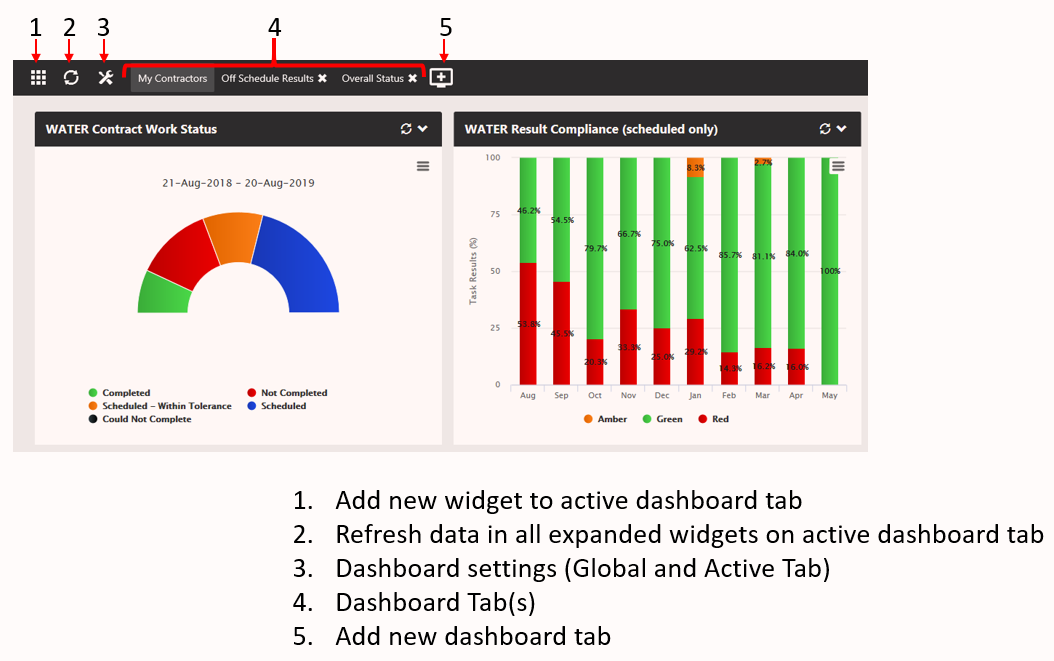
Fig 1.1
Adding a new dashboard tab is easy, just click the button (5 in image above) and give the tab a name (Max 30 chars in length). The new tab can be selected as the new default tab (whereupon the x will not be visible - default dashboards cannot be removed).
Tab Settings
The Global Tab Settings (All Tabs) [top section Fig 1.2] will apply any selected Probe Type filter to all of your dashboard tabs, if you see unusual results on your dashboard, checking this setting might reveal the problem!
The Active Tab Settings are applied only to the selected tab (this can be confirmed by looking at the Name field. It is possible to amend the default dashboard (ie the tab you land on each time you visit the dash), set the number of columns for widgets [1-4] and filter the entire tab by one or more MCS.
Regarding the MCS filter:
The Customise View MCS filter overrides any and all Tab MCS filters
The Tab MCS filter overrides any MCS filter on any and all widgets on that tab
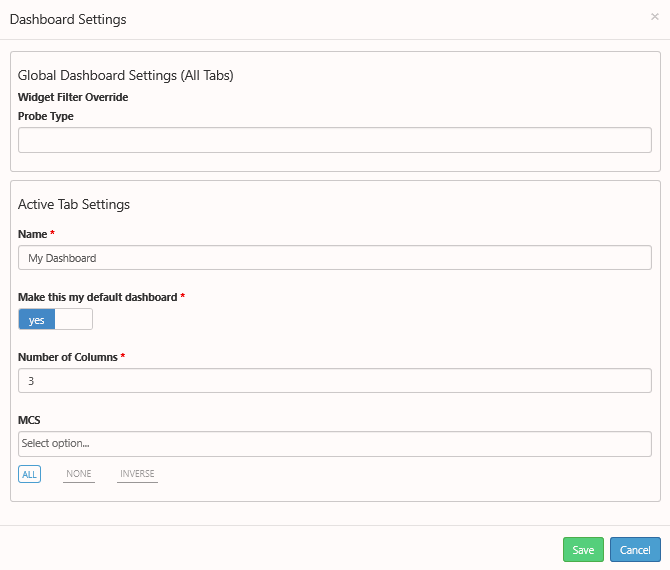
Fig 1.2
Zetasafe 'Default widget set':
- 1x Work Status
- A graph of the current scheduled events and their status
- 1x (Consecutive) Failures Since Last Green Result
- A list of asset/tasks where there have been more than 1 consecutive OOS result
- 1x Result Compliance
- A graph of all results entered during the period shown and their status
- 1x Top 10 Failures
- The top 10 worst performing asset/tasks within the active client/channel
- 1x Open Result Notes
- A list of all note which are not closed.
Share your tab with a colleague (or several!)
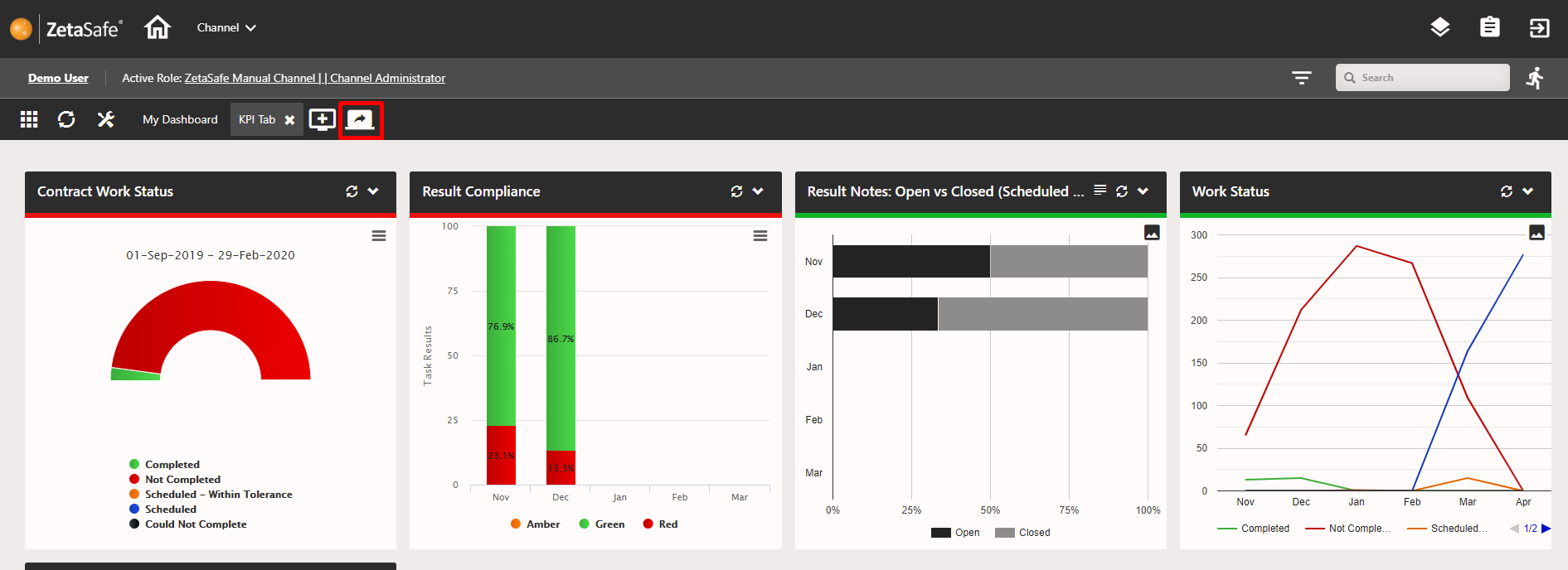
Using the new 'Copy to user(s)' button you can share a fully configured tab with users who have similar roles. This feature is available to admin type users (channel & client) allowing tabs to be shared with users of similar role types. Please note that once shared the tabs are NOT linked so updating the original will not affect any copies.
Comments
0 comments
Article is closed for comments.