
Edit a Single Asset
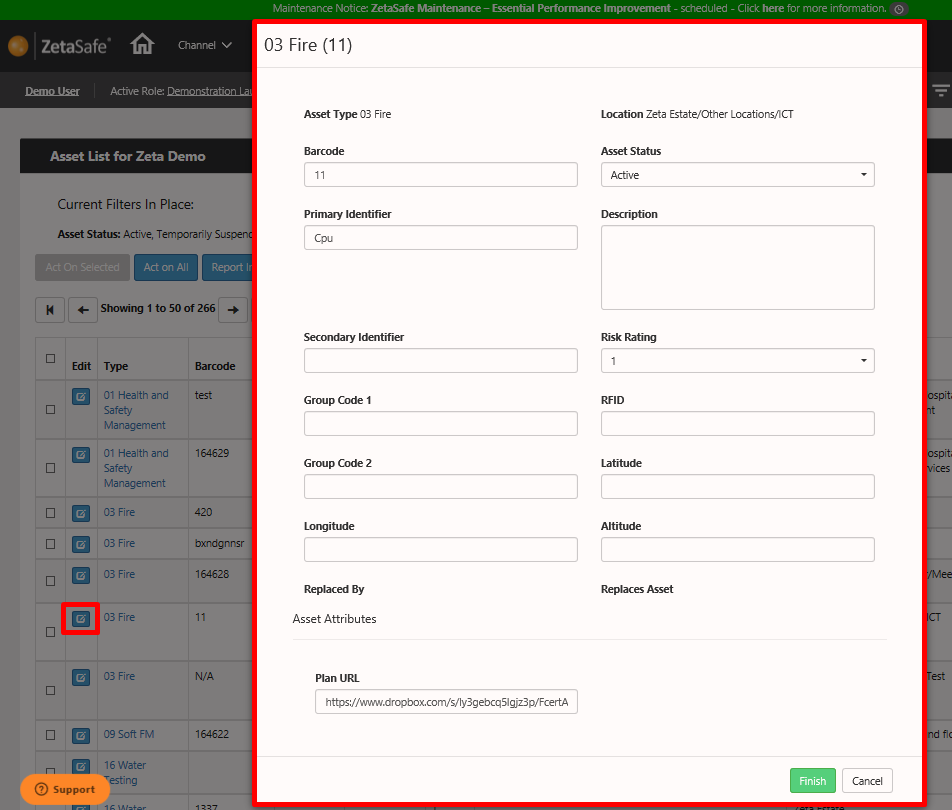
Navigate to any single asset, select Edit from the Side Menu.
Editing assets manually does allow more fields to be amended, every field of an asset is available to be edited with the exception of the Asset Type or Location.
Asset Attribute values are also editable from this screen.
Edit Multiple Assets (Act on All/Act on Selected)
NOTE: If you wish to deactivate a number of assets at once it is necessary to select each assets checkbox and use the AOS function. Using AOA or trying to use the 'select all' check box and AOS will not work; this is to minimise the risk of users accidentally removing swathes of schedules by deactivating all assets in a client for example. This type of action is not easily reverted and thus should be used with care.
To change many assets at once first it is necessary to generate an asset list within ZetaSafe. One way is by clicking the Asset List Icon at the top right of the screen.
DEACTIVATED assets which have not been replaced (using Change Asset Type) can be selected using AOS/AOA assets, it is only possible to re-activate and move assets with this status. To make changes to other elements it will be necessary to reactivate the assets and then re-select the ‘activated’ assets to apply further changes.
ACTIVE and SUSPENDED assets can be updated using AOS/AOA assets without any requirement to update asset status.
The following fields can be edited en masse:
- Schedule/Reschedule
- Primary/Secondary ID
- Risk Rating
- Group Code 1 & 2
- Description
- Location
NOTE: When scheduling this function it will schedule all tasks for the listed assets which can be scheduled – even if they were not scheduled before.
An 'inline' edit function is also available from asset lists, allowing the user to work through a filtered list (where bulk edit might not be appropriate), maintaining the list of items in the background.
Comments
0 comments
Please sign in to leave a comment.