
All users can view the location tree and see information regarding the locations and sub locations within it. Users who are restricted to one or more location within a client will not be able to view location(s) for which they do not have access.
Special features available from the Location Explorer screen are:
- Act on Selected locations
- Act on All locations
- Move locations (in bulk)
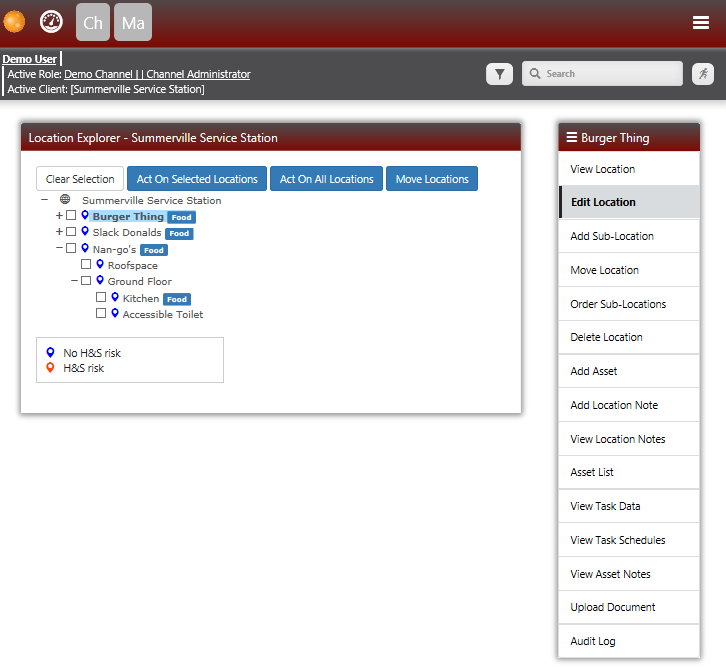
- Access sub menu items for any selected location in the tree
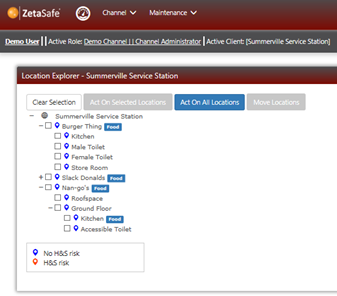
Where a location has a location type attached, this is displayed next to the location in a blue lozenge.
To activate Move Locations select the locations you wish to move. Where an item is selected to move, all items below it will also be selected and they will also move.
Selecting one or more locations will also activate the Act on Selected button, this has all the same features as Act on All but will operate on only the selected locations.
Locations which have Health & Safety risks associated with them have orange flags, where there is no associated risk the flag is blue.
Selecting a single location in the tree will display the sub menu items for the Location
Comments
0 comments
Please sign in to leave a comment.